DirectlyDrop / Guides
Transfer Files from Phone to Computer Without an App
Learn how to transfer files from Android or iPhone to a computer with a room code, QR link, and browser, including network requirements and troubleshooting.
Start a phone-to-computer transfer →
Prepared by: DirectlyDrop · Editorial method: source code, tests, and primary technical sources · Updated: August 24, 2026 · 8 min read
Prepare the phone and computer
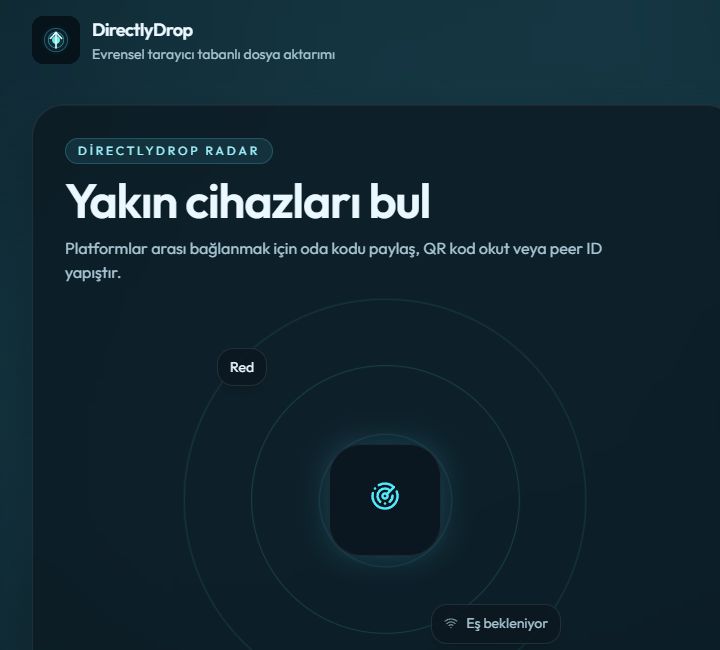
Open DirectlyDrop in a current browser on the computer and phone. You do not need an account or an installed DirectlyDrop app. Enter the computer's four-digit room code in the phone's connection field, or scan the QR code shown on the computer. The other device's name appears on both screens after pairing completes.
The devices do not have to use the same Wi-Fi network. They can attempt to pair over different internet connections through WebRTC. Corporate firewalls, some carrier networks, and VPNs can block a direct route. If production TURN is configured, encrypted traffic may use that relay; otherwise a restricted network may fail to connect.
Send a photo or document from the phone
When the phone is the sender, tap Select files after the connection is ready. Android may open its file manager, while iPhone may offer Files, Photos, or another browser picker. Grant access only to the items you intend to send. DirectlyDrop queues up to three files, and the recipient reviews each file's name and size before accepting it.
On the computer, confirm that the offer came from the expected phone and select Accept. When the transfer finishes, use Download directly on the success screen. The file may enter Downloads or trigger a save dialog depending on browser settings. Open it and verify its name, size, and contents before deleting the phone copy.
Reverse the direction to send to the phone
Pairing works in both directions. The computer can choose a file and send it to the phone after connecting. On desktop, drag a file into the transfer area or use the file picker, then select Send. The phone displays an offer and no content is transferred until the recipient accepts it.
iOS and Android handle downloads differently. File received means the data is ready in the phone browser; select Save or share to open the device menu, then choose Save to Files or another suitable app. If that option is unavailable, use Download directly. Do not close the success screen before saving the file.
Keep the mobile transfer active
Mobile operating systems may slow or suspend background browser tabs to save power. Keep both displays awake, leave the DirectlyDrop tab in the foreground, and delay automatic screen locking during large video or archive transfers. Connect the phone to power when possible and avoid changing networks during the session.
A transfer over mobile data can consume the full file size from the data plan, and a TURN-routed transfer still travels over the internet. A shared local network is often faster and steadier, but it does not guarantee a direct route. A small photo test is the best way to measure the actual conditions before sending a large file.
When the room code or QR link does not work
Enter all four digits, including a leading zero. If the room code, link, or QR image came from an older tab, refresh both devices and use the new session. If Connect remains disabled, make sure the field contains exactly four digits. If the camera cannot read the QR code, increase screen brightness or send the private share link to the phone instead.
If pairing does not finish within fifteen seconds, temporarily disable the VPN and retry with a current Chrome, Edge, Firefox, or Safari release. Moving one device to another Wi-Fi or carrier network helps identify a network-specific problem. The Transfer Tools page can check core browser APIs locally.
When another method is a better fit
DirectlyDrop uses a live browser session, so both devices must be online at the same time. Cloud storage is a better fit when the recipient will open the phone later, a download link must stay available for days, a transfer must resume after interruption, or the same file must reach many recipients.
Do not post room codes publicly for sensitive documents. Verify the remote device name and protect the downloaded copy on a shared computer. For a critical archive, compare a SHA-256 digest on both devices with the local calculator on the Transfer Tools page.