DirectlyDrop / Guides
Browser File Transfer: The Complete DirectlyDrop Guide
A practical guide to sending files with DirectlyDrop, WebRTC connections, security, large files, browser support, and troubleshooting.
Prepared by: DirectlyDrop · Editorial method: source code, tests, and primary technical sources · Updated: August 24, 2026 · 15 min read
What does DirectlyDrop do?
DirectlyDrop is a free web tool for sharing files between two devices in their browsers. The sender and recipient meet in the same transfer session without creating an account. You can select photos, videos, PDFs, archives, or project files, and the app sends each file in small chunks.
PeerJS and WebRTC establish the connection. When network conditions allow it, data travels directly between the browsers. If valid TURN credentials are configured and a direct route is unavailable, encrypted WebRTC traffic may pass through that relay. The relay forwards live traffic; it does not create a permanent DirectlyDrop file archive.
1. The sender prepares a transfer room
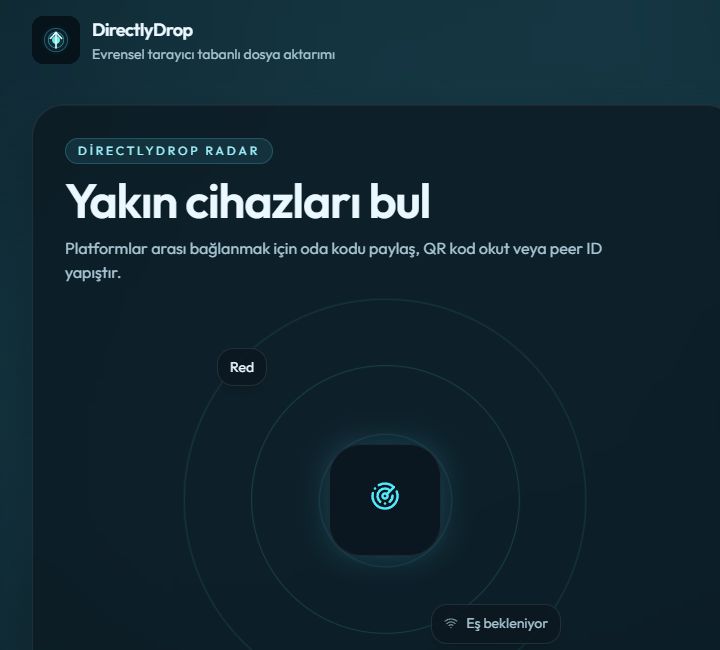
When the home page opens, the browser receives a random device name and a four-digit room code. The same code is included in the private share link. The sender can share the code, copy the link, or let the recipient scan the QR code.
A room code is not a password. Share it only with the intended recipient, preferably through a private channel. The recipient sees the file name, size, and sender device before accepting, and should reject any unexpected offer.
2. The recipient connects
Opening the share link lets the app read the sender's peer identifier and begin connecting. The recipient can also enter the four-digit room code on the home page and select Connect. Once both sides are ready, the remote device name appears on screen.
If pairing fails, refresh both devices and try the new code. VPNs, corporate firewalls, content blockers, and restricted mobile networks can affect WebRTC. Testing an up-to-date browser and then a different network is the fastest way to narrow down the cause.
3. Select and send files
After connecting, select the file area or drag files into it on desktop. The current version queues up to three files at once. For every file, the recipient sees an offer containing its name and size; no file chunks are sent until the recipient accepts.
During transfer, the interface shows progress, transferred data, estimated speed, and remaining time. These are estimates based on current conditions and may change when Wi-Fi quality or mobile connectivity fluctuates.
What happens inside the browser during transfer?
DirectlyDrop divides a file into 16 KB chunks. It pauses briefly when the data-channel buffer grows, limiting uncontrolled memory use. If the receiving browser supports the Origin Private File System, incoming chunks are written to temporary device storage; otherwise they remain in memory until completion.
After the final chunk, the completed file stays available on the success screen. On mobile, the recipient can open the system menu with Save or share, or use the Download directly link. The temporary OPFS entry remains until the success screen closes. Interrupted transfers cannot currently resume; if a tab closes, a device sleeps, or the connection drops, create a new room and start again.
Checklist for a reliable transfer
Send a small test file before a large one. Keep both devices powered, delay mobile screen locking, leave the DirectlyDrop tabs in the foreground, and make sure the recipient has more free space than the file requires.
Do not close either tab before both sides report completion. The recipient should finish the save or download action, then open the file and check its size and contents. For critical archives, compare a SHA-256 digest on both devices with the local tool on the Transfer Tools page.
What do WebRTC, STUN, and TURN do?
RTCDataChannel carries binary data between browsers, while PeerJS simplifies peer identifiers, signaling, and connection events. Signaling exchanges the information needed to connect; it does not upload the file to a permanent DirectlyDrop repository.
STUN helps browsers discover possible network routes. When a direct route cannot be established because of strict firewalls or NAT behavior, TURN can temporarily relay encrypted WebRTC traffic. DirectlyDrop therefore promises encrypted WebRTC transfer without permanent app storage, not a physically direct route under every network condition.
Threat model for safer sharing
Transport encryption does not prevent sending to the wrong person, exposing a room code publicly, or leaving a download unprotected on a shared device. Share the code privately, verify the displayed device name, and compare the complete four-digit code over a second channel for sensitive files.
Check the file name, extension, and size before sending. Mask unnecessary fields in identity documents and compare SHA-256 digests for critical archives. The local calculator never uploads the selected file.
Capacity and time estimates for large files
There is no useful universal file-size limit. Sender upload speed, recipient disk space, browser memory, mobile background restrictions, and whether TURN is used all affect capacity. Without OPFS, large files remain in memory and are more likely to overwhelm a tab.
For a rough estimate, divide the file size in megabits by the measured end-to-end Mbps. A 1 GB file is roughly 8,000 megabits, so 20 Mbps has a theoretical floor near 400 seconds before protocol overhead and fluctuations.
Troubleshoot the connection step by step
If no room code appears, check HTTPS, connectivity, and blocking extensions. If a code exists but pairing fails, verify the newest code on both devices, temporarily disable a VPN, and test a private window or another network. If devices pair but transfer stalls, keep both tabs visible and try a small file.
The current version cannot resume after a tab closes, a device sleeps, or the network changes. Cloud storage or an enterprise sharing system is more suitable when both people cannot be online together or a long-lived download link is required.
How should browser compatibility be interpreted?
WebRTC data channels and the File API are core requirements. OPFS is optional but reduces memory pressure for large incoming files. Service worker support helps installation and offline app-shell loading; a live transfer still requires an active network and open session.
Version-only compatibility lists age quickly. The Transfer Tools diagnostic checks the required APIs in the browser you are using now. If WebRTC or File API fails, retry with a current Chrome, Edge, Firefox, or Safari release.