DirectlyDrop / Guides
Send Large Files Online: Browser Preparation and Timing
Evaluate capacity, transfer time, OPFS support, and interruption risks before sending a large video, archive, or project file in the browser.
Prepare a large-file transfer →
Prepared by: DirectlyDrop · Editorial method: source code, tests, and primary technical sources · Updated: August 24, 2026 · 9 min read
Why there is no universal file-size limit
DirectlyDrop avoids a fixed application quota, but that does not mean every device can transfer unlimited data. The sender must read the file, the recipient needs enough free space, the connection must remain open, and a mobile operating system must not suspend the tab. Any one of these factors can become the practical limit.
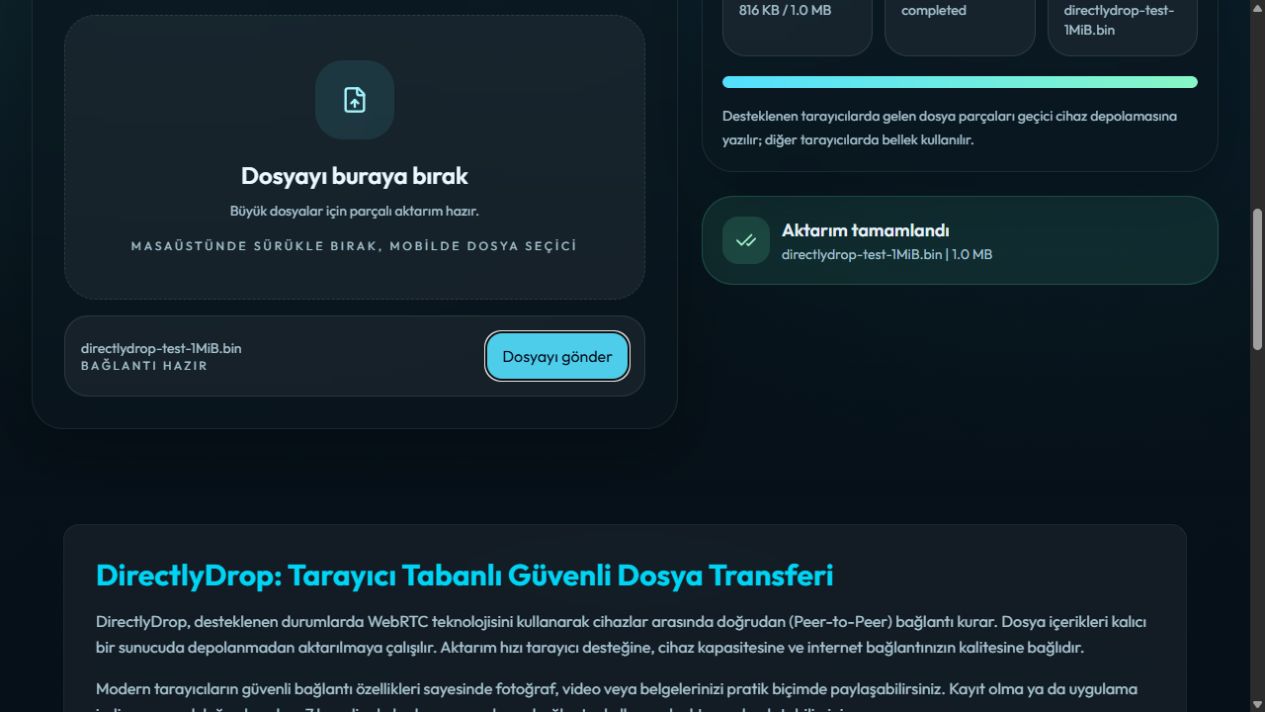
When the recipient browser supports the Origin Private File System, incoming 16 KB chunks are written to temporary device storage. Without OPFS, chunks stay in memory until completion, and a large file is more likely to overwhelm the tab. The Transfer Tools diagnostic reports OPFS and core WebRTC support in the current browser.
Check capacity before starting
Leave more free space on the recipient than the nominal file size because temporary writing and final download preparation can require additional room. Connect both devices to power, delay sleep and automatic screen locking, and close unnecessary browser tabs. Keep DirectlyDrop visible on mobile.
Send a non-sensitive 10-50 MB test file first. This checks room pairing, recipient approval, the actual connection route, and approximate throughput together. If the small file cannot complete, selecting a larger archive will not solve the underlying browser or network problem.
Estimate transfer time
Convert file size to megabits and divide by measured end-to-end Mbps. One GB is roughly 8,000 megabits. At an effective 20 Mbps, the theoretical floor is 400 seconds, or about 6 minutes 40 seconds. Five GB at the same rate is roughly 33 minutes before overhead. Protocol cost, Wi-Fi variation, and disk writes add time.
The internet plan's download figure is not enough; sender upload speed and recipient write capacity matter too. A TURN route can add relay capacity and path constraints. Speed and remaining time shown in the interface are current estimates, not guarantees.
Reduce interruptions during transfer
Do not switch between Wi-Fi and mobile data, toggle a VPN, refresh the tab, or allow a computer to sleep during sending. A file offer can time out if the recipient does not respond within a minute, and the app enters an error state when acknowledgements or data stop for too long.
The current DirectlyDrop release cannot resume from the last chunk. A dropped connection requires a new room and a complete retry. That risk grows with transfers lasting hours; use a service with resumable uploads and persistent storage when continuation is essential.
When splitting a large file helps
Dividing a very large archive into independent numbered parts lets you resend only a failed part. Choose a format the recipient can recombine and label every segment clearly. If the archive uses a password, deliver that password through a channel separate from the room code and file session.
Compression does not save the same amount for every format. JPEG, MP4, and ZIP files are already compressed and may shrink very little, while text, CSV, or uncompressed project folders can shrink substantially. Compare compression time with the likely transfer-time reduction.
Verify the completed file
A completed sender state means the recipient processed the expected chunks and returned a final acknowledgement. For a critical backup, software package, or deliverable, the recipient should still open the file, check its size, and compare a SHA-256 digest with the sender's value.
The Transfer Tools page calculates SHA-256 locally for files up to 256 MiB. Use a trusted operating-system digest command for larger files. Different digests prove that the two copies are not identical; do not use the received copy and retry in a new session.