DirectlyDrop / Guides
Send Files with a QR Code Between Two Devices
Learn what a DirectlyDrop sharing QR code contains, how to scan it, when file transfer begins, and how to pair two devices more safely.
Prepared by: DirectlyDrop · Editorial method: source code, tests, and primary technical sources · Updated: August 24, 2026 · 6 min read
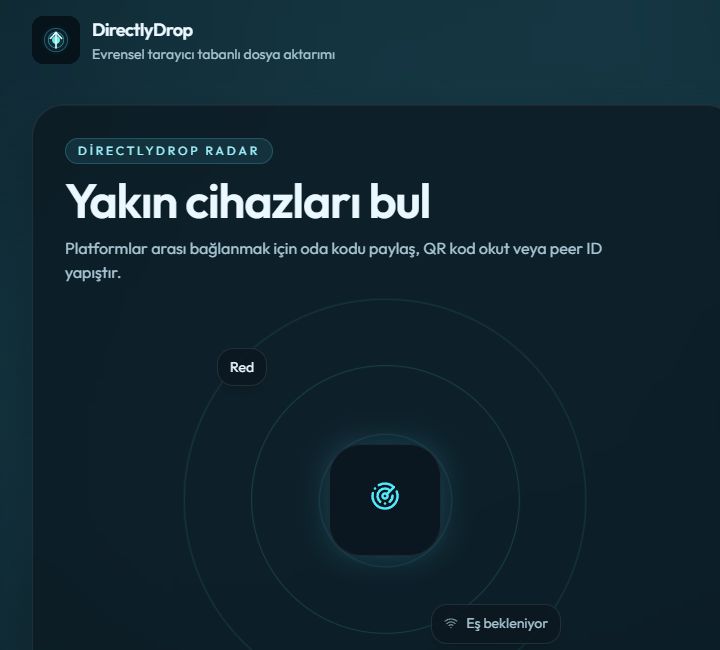
What is inside the DirectlyDrop QR code?
The QR code does not contain the file. It represents a DirectlyDrop share link carrying the sender browser's current peer identifier. When a phone scans it, the site opens that link and attempts to pair the two devices in a WebRTC session. A file moves only after pairing, sender selection, and recipient approval.
Generating the QR image therefore does not upload a file or start sending. The link removes the need to type a long peer identifier. The four-digit room code is a shorter option for manually joining the same session.
Scan a computer QR code with a phone
Open DirectlyDrop on the computer, wait for the room code, and select the QR button. Open the phone's Camera app or system QR scanner and frame the code. Follow the directlydrop.com link. Wait for the connection and confirm the remote device name shown on both screens.
If the phone requests camera access, only camera permission is needed at this stage; photo-library access is not. When the QR image is hard to recognize, raise the computer display brightness, move the phone slightly farther away, or copy the link from the QR panel and send it privately.
Choose a file after pairing
Once the connection is ready, choose the file on the sending device. Drag and drop works on desktop, while a phone uses its mobile file picker. The recipient receives an offer showing the sender, file name, and size.
The recipient selects Accept only when those details match. Both screens show progress, and the recipient chooses Save or share or Download directly after completion. Scanning the QR code never grants automatic approval; the separate offer prevents an unexpected file from transferring immediately.
Share the QR code privately
The QR image is not a password, and someone who sees it can attempt to join the session. Do not post its screenshot publicly or leave it on a shared display longer than necessary. Refresh the page to create a new room if an unexpected device connects.
After scanning, verify that the address bar shows directlydrop.com over HTTPS. Do not choose sensitive files on a lookalike domain. Reject the offer when the sender name, extension, or size differs from what you expect.
When the link opens but pairing fails
The QR image may belong to an expired browser tab. Refresh the computer and scan the new code. Some messaging in-app browsers restrict URL parameters or WebRTC; open the link in regular Chrome, Safari, Edge, or Firefox when that happens.
A VPN, corporate firewall, or restricted carrier network can still block WebRTC after the QR code is read correctly. Retry on another network. Entering the new four-digit room code manually helps distinguish a camera or link-reading problem from a connection problem.
When QR pairing is most useful
Scanning is convenient when a phone and computer are next to each other and you do not want to type a link or sign into a messaging account. The devices need not share Wi-Fi, and the same pairing flow works before choosing photos, videos, PDFs, or archives.
When the devices are far apart, send the private link instead of a QR screenshot. DirectlyDrop is not suitable for a QR download that must remain valid for days because the session is live and both browsers must remain available.